How to Screenshot in PC
* Windows
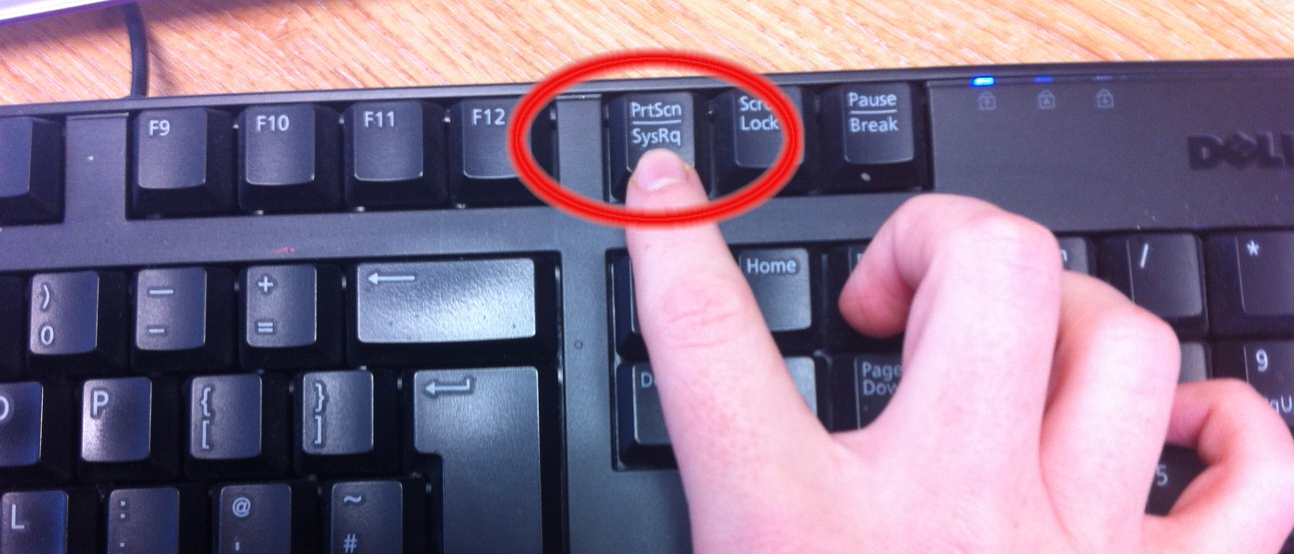
- Hit the PrtScn button to take a screenshot of the entire screen:
When using Windows, pressing the Print Screen button (located in the
top right of the keyboard) will take a screenshot of your entire screen.
Hitting this button essentially copies an image of the screen to the
clipboard. You’ll then need to paste the image into Word, Paint or some
other image editing program to view, edit or save the image. If you’d
like to capture only the active window press the Alt and PrtScn buttons
together.
- Use the Snipping Tool program to take and edit screenshots: If
you’re having difficulty locating or using the Print Screen key you
might prefer to use Snipping Tool. Snipping Tool is a program that is
included for free with Windows 7,
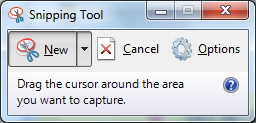 Windows
Vista and a number of other Windows products. It allows you to take
screenshots easily by clicking New and then selecting the area that
you’d like to screenshot. You can then edit the screenshot, using
highlighter and pen tools. Snipping Tool is just one of numerous tools
available to assist you in taking screenshots.
Windows
Vista and a number of other Windows products. It allows you to take
screenshots easily by clicking New and then selecting the area that
you’d like to screenshot. You can then edit the screenshot, using
highlighter and pen tools. Snipping Tool is just one of numerous tools
available to assist you in taking screenshots. - Some laptops in particular mightn’t have a PrtScn key. The user manual that came with your machine should have instructions on different key combinations that can be used for taking screenshots
* Mac
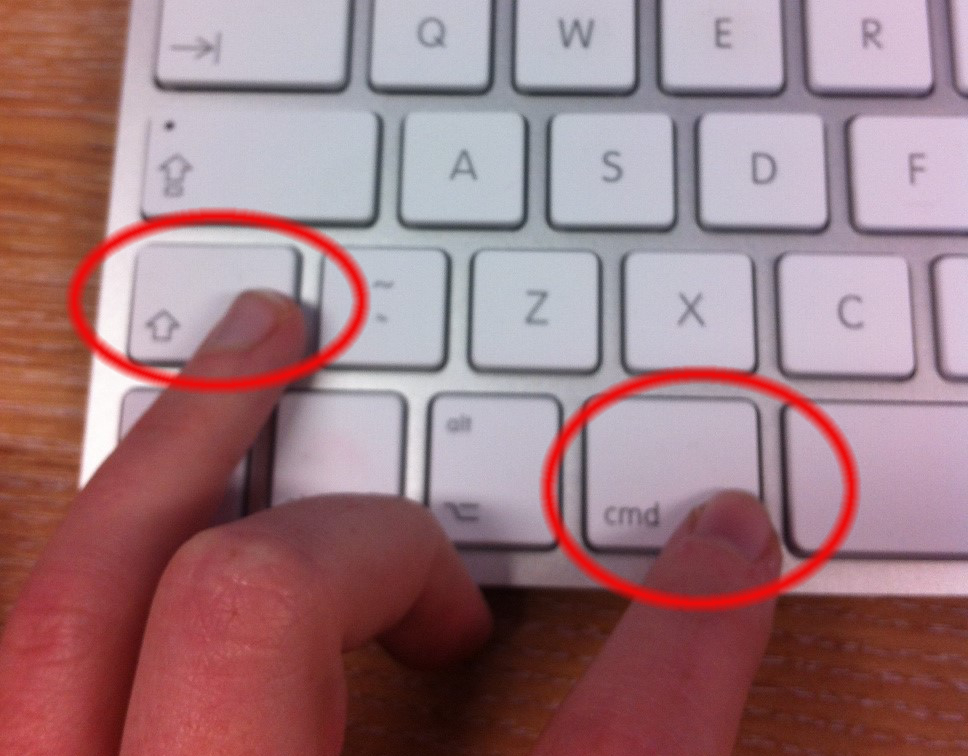
- Hit the Command, Shift and 3 keys together to take a screenshot of the entire screen: When
using Mac, pressing the Command, Shift and 3 buttons together will take
a screenshot of your entire screen. This screenshot will be
automatically saved to your desktop. Press the Command, Shift and 4 keys
together to take a screenshot of a selected area
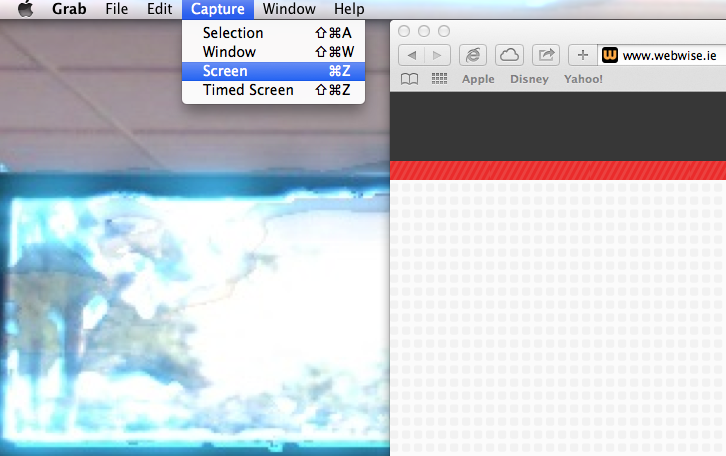
- Use the Grab tool to take a screenshot: An alternative to the keyboard shortcuts on Mac is to use the Grab tool. Grab is a program that is included for free with Macs. It allows you to take screenshots easily by clicking Capture and then selecting the type of screenshot that you’d like to take. Grab is just one of numerous tools available to assist you in taking screenshots
Subscribe my youtube channel >> Click

This good Blog
BalasHapusThanks for helping me :)